
Managed WordPress Hosting: WordPress Manager

The WordPress Manager acts as a central hub to handle all of your WordPress websites from a single, easy-to-use dashboard. You can view, manage and update your site from this dashboard. This means you do not have to log in to each WordPress website's dashboard to handle general operations.
What does the WordPress Manager show?
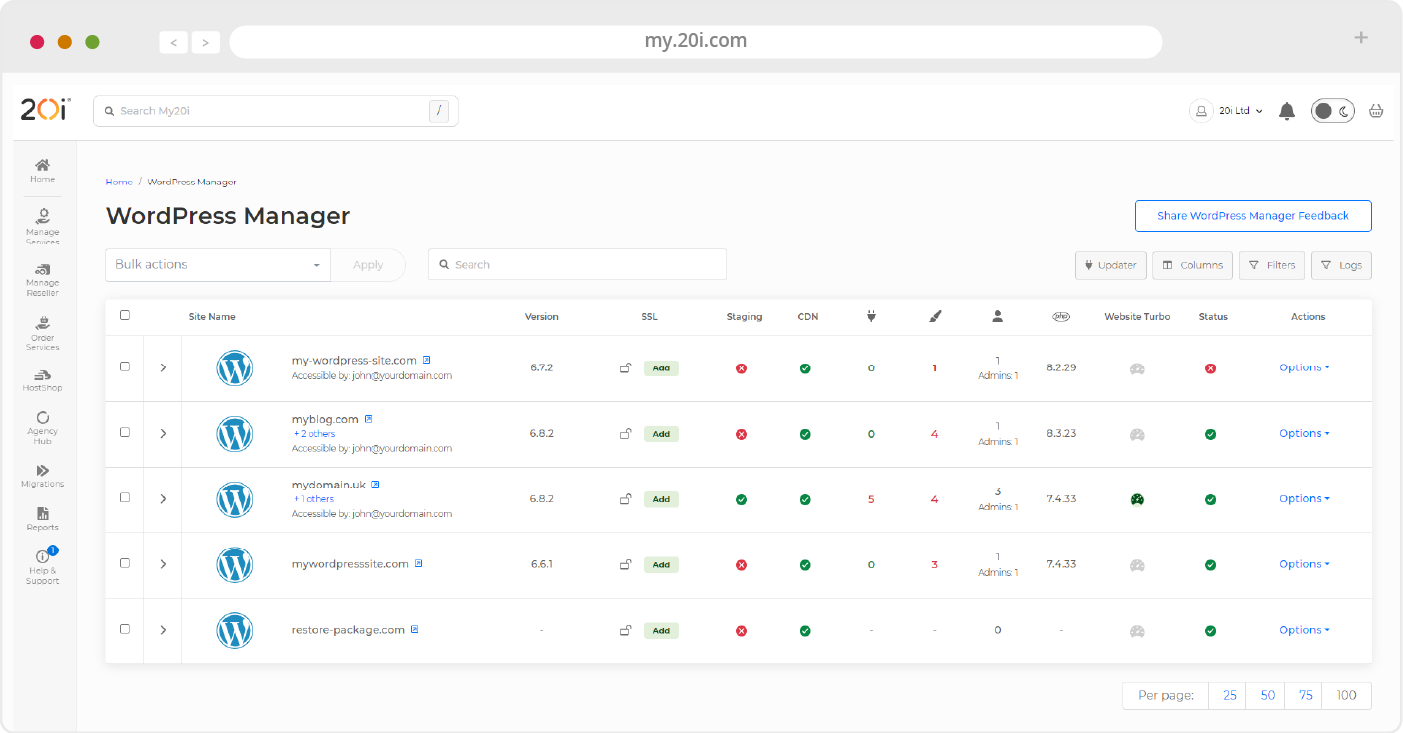
The WordPress Manager displays the following details for each website:
- Site name (URL) with a direct link to the live site
- User access permissions (who can manage the site)
- Current WordPress version in use
- SSL certificate status (installed or not)
- Staging site availability on the hosting package
- 20i CDN caching status
- Number of available updates
- Update breakdown by type — plugins and themes, including quantities
- Timeline backup snapshots associated with the hosting package
- PHP version currently running
- Website Turbo status (enabled or not)
- Malware scan results, indicating any infections
- Site status — either Active (live) or Disabled
- Hosting management options
- Can you bulk manage your WordPress sites?
You can bulk update your website simultaneously, by using the Bulk Update feature within WordPress Manager. If you select several websites, using the tick boxes on the left, you can perform the following bulk actions:
- Install WordPress
- Install the Core WordPress Files
- Upgrade WordPress Version
- Update Plugins
- Update Themes
- Verify Plugin checksums
- Purge Stackcache
Exporting Data?
The WordPress Manager includes an export function, where you can export and download the information outlined above to a .csv file. The CSV file will look similar to the summary view and will include the names of all the plugins and themes. You can do this by heading to the bottom of the page and then clicking the 'Download as .csv' button.
>> Next step: Further Help and Next Steps