
How do I manage my Unmanaged VPS?

Your Unmanaged VPS can be managed by the My20i control panel, making provisioning, managing and customising your virtual private server effortless.
To manage your VPS from your My20i homepage, navigate to Manage VPS > locate your VPS and then select Options > Manage.
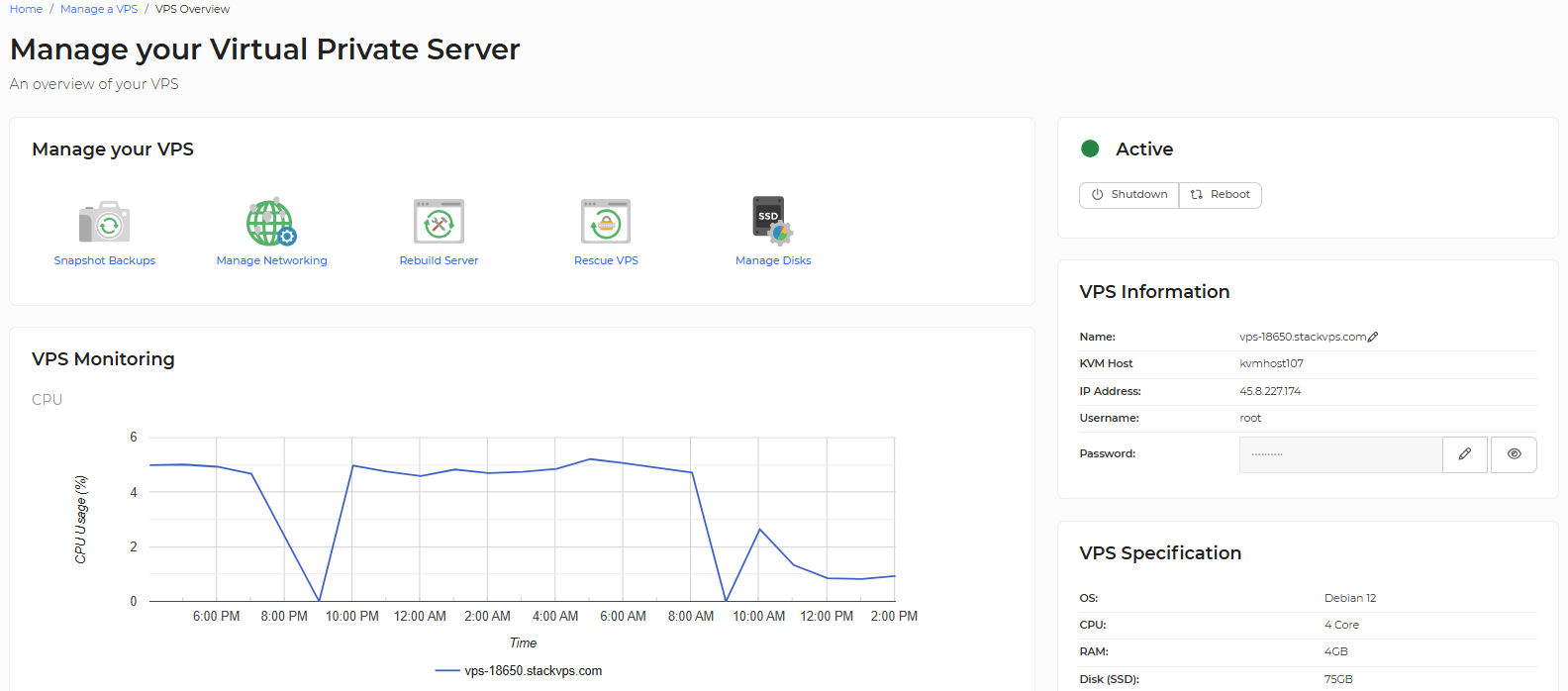
Now that you are managing your chosen VPS, you will see all of the available options:
Snapshot Backups - This is a premium addon service and will create a full backup of your virtual machine. You'll have control over how often backups are taken, with daily, weekly, and fortnightly backups as available options.
Manage Networking - This feature enables you to view the assigned IP addresses and private networks for your VPS.
Rebuild Server - Rebuilding your server allows you to wipe the server clean with the currently configured operating system, or with a new operating system.
Rescue VPS - This feature allows you to connect to your virtual machine by using VNC, in case you lose access because of an incorrect firewall rule or a software update gone wrong.
Manage Disks - This provides information regarding your current storage disks and provides the option to purchase block storage for your VPS, which adds additional SSD disks to your VPS.
VPS Monitoring - This provides graphical insights into CPU Usage, Traffic & Disk I/O over a set period of time.
You can also shut down and reboot your VPS from this overview page.