
Change the Document Root of a Hosting Package

The document root is the folder on your hosting package that your domain or subdomain serves files from. When someone visits your website, the web server looks in this directory for your site's content, such as index.html or index.php.
By default, your primary domain uses the public_html directory, while subdomains are created with their own folder inside public_html (for example, public_html/blog). If you need your website to load from a different location, you can update the document root at any time through My20i.
Note: This guide applies to standard Linux web hosting packages. On Managed WordPress Hosting, you can't change document roots. The live website always uses public_html, while the staging site always uses staging_html.
By default:
- Primary domains use
public_html - Subdomains use
public_html/[subdomain-name]
You can change the document root to any directory within your hosting package. This is useful if you want to serve a website from a different folder, organise multiple projects, or point a domain or subdomain at an existing directory.
Important: Before changing your document root, make sure the folder already exists and contains your website files. If the selected directory is empty, your website may display a 403/404 error or directory listing instead.
Before You Begin
Your domain or subdomain must point to your hosting package.
You can do this by either:
- Using 20i nameservers, which will automatically create the required DNS records when you add domains and subdomains.
- Using external DNS, ensuring that your domain or subdomain (or a wildcard record such as
*.example.com) points to your 20i hosting package.
If the DNS is not pointing to your hosting package, changing the document root will have no effect.
Changing the Document Root for a Primary Domain
- Sign in to My20i:
- Go to Manage Hosting - This page lists all of your hosting packages.
- Find the package you want to update and select Options > Manage.
- Locate the Manage Domains section.
- Select the Domains button.
- Change the Document Root field from the default
public_htmlto the directory you want to use.
For example: public_html
could become: public_html/newsite
or website
The directory must exist within your hosting package.
- Click Update.

Changing the Document Root for a Subdomain
If you already have a subdomain configured:
- Sign in to My20i.
- Open Manage Hosting.
- Select Options > Manage for the relevant hosting package.
- Scroll down to the Domains section.
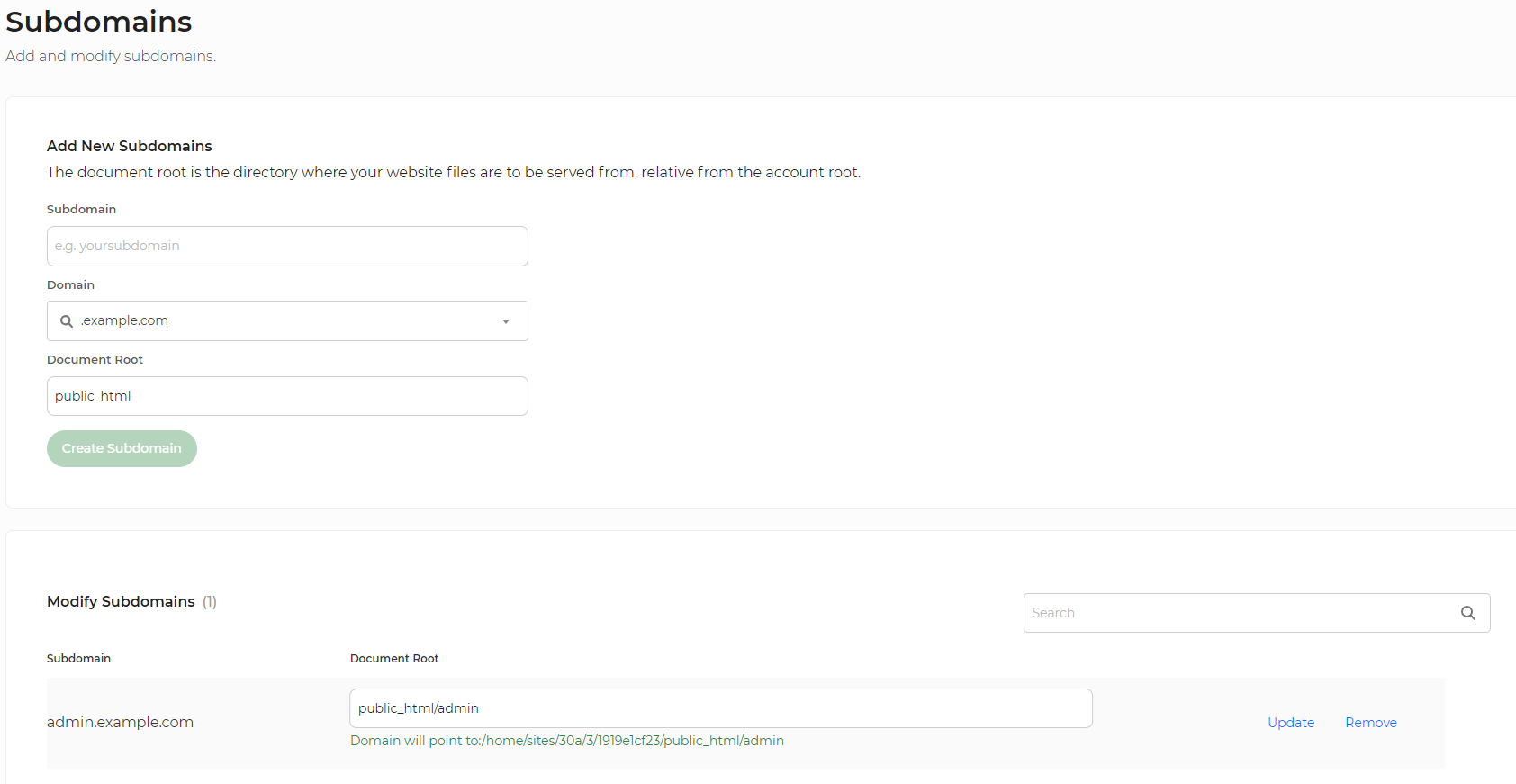
- Select Subdomains
- Locate the subdomain you want to update under Modify Subdomains. If it does not already exist, you can add a new subdomain using these steps.
- Edit the Document Root field.
For example, you could change:
public_html/subdomain
to
public_html/newsite
or any other directory within your hosting package.
- Click Update.
Removing a Subdomain
If you no longer need a subdomain, you can remove it from the Modify Subdomains section by clicking Remove.
Removing a subdomain deletes the subdomain configuration, but does not delete the files in its document root.
Things to Keep in Mind
- The document root can point to any directory within your hosting package.
- The target directory should already exist and contain your website files.
- Existing URLs may stop working if you point a domain to an empty or incorrect directory.
- If you're changing the document root for a live website, it's a good idea to test the new location before making the change.
Default Document Roots
| Website Type | Default Document Root |
|---|---|
| Primary domain | public_html |
| Subdomain | public_html/[subdomain-name] |