How do I use the HostShop Cloud Server Renewal Report?

With HostShop, you can easily check and monitor the current renewals for any Cloud Servers assigned to your StackCP users by viewing the Cloud Server Renewal Report.
To access the report:
- Log in to My20i.
- Select HostShop on the sidebar, and then select Cloud Server Renewal Report under the Reports section.
You’ll be presented with a full list of all of the Cloud servers currently available in your My20i account, alongside a link to the specific StackCP user the server is assigned to.
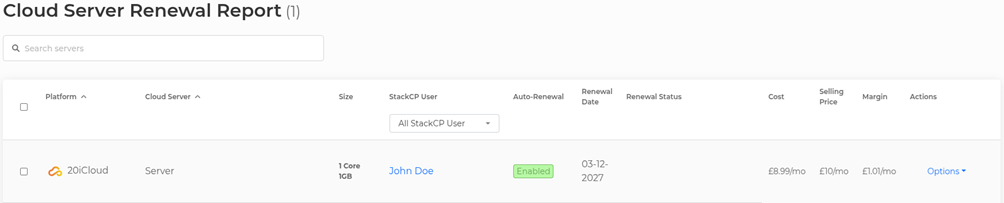
You will also be able to see information on the type of server, the current Auto-Renewal status, the Renewal Date, the Cost and Selling Price, as well as your current Profit Margin based on the prices you have defined in the HostShop Cloud Servers area.
You can filter the list to a specific StackCP user by selecting the dropdown box beneath the StackCP user column, should you wish to isolate a specific client’s server list.
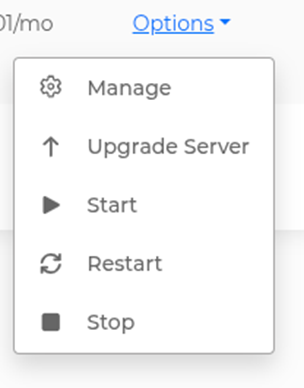
By selecting Options, you can manage a specific server based on a client’s requirements, allowing for you to manage, upgrade, start, restart or stop the server directly from the report.