
Configure Timeline Backups Pro in Package Types

As a 20i Reseller, if you have Timeline Backups Pro, you can now choose the level of backup access available to your customers.
You can set backup access to one of the following options:
- No access to Timeline Backups
- Standard access to Timeline Backups (includes web files & database snapshots)
- Full access to Timeline Backups Pro (includes web files, database and mailbox snapshots)
This allows you to offer Timeline Backups Pro as an optional upsell, for example, to customers who require email backups.
To configure this:
- Head to the Hosting Package Types section in the control panel.
- Locate the hosting package type you would like to configure Timeline Backups for.
- Select Options >> Edit.
- Locate the Web Files section, and select the Timeline Backups and Timeline Backups Pro checkboxes to set the level of backup access for that package type.
- Select Save Changes.
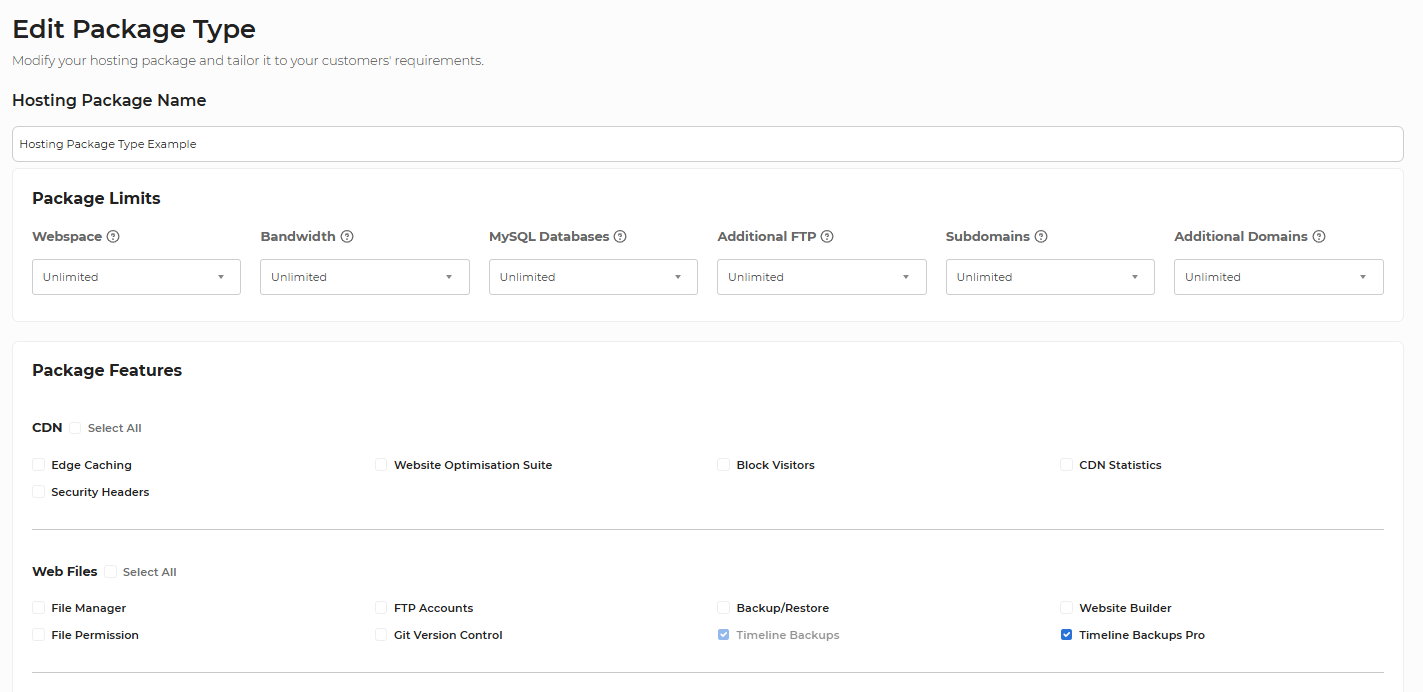
Note: If you are editing an existing package type and want the updated backup settings to apply to existing hosting packages that use this package type, make sure the Synchronise Updates toggle is enabled before saving.