
How to import & export emails via Stackmail

Stackmail enables you to import and export emails, making it easier to transfer data between mailboxes, or to simply store local snippets of your mailbox.
To manually download these, you will need to access the mailbox directly via Stackmail. Firstly, select the emails you wish to download, and then use the option More > Download > and then select the file format of the export. You can hold the Shift key and click multiple emails if you wish to select a specific set of emails to download. This will allow you to download the emails, in either the Mbox, or Maildir formats, as a zip file. We'd recommend Mbox, so that you can import the emails back through Stackmail. This will download the selected email as a ZIP file, locally to your PC.
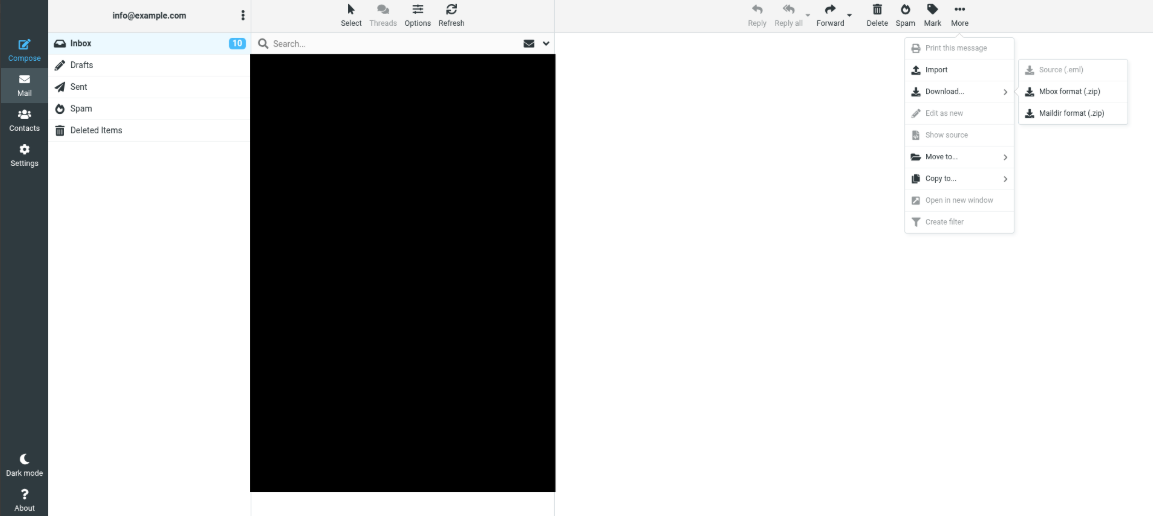
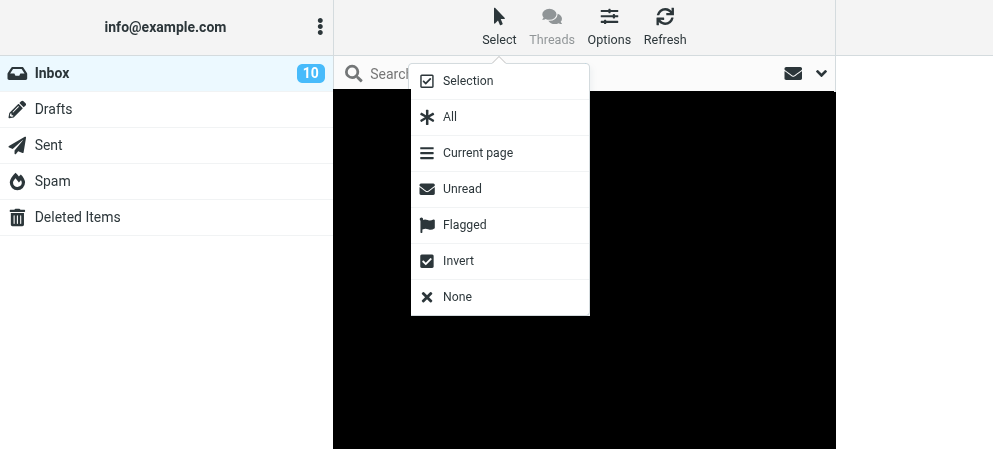
If you wish to take a full backup of a current folder, you will want to use the select feature, followed by the all option. You will need to select the Select option > * all > More > Download.
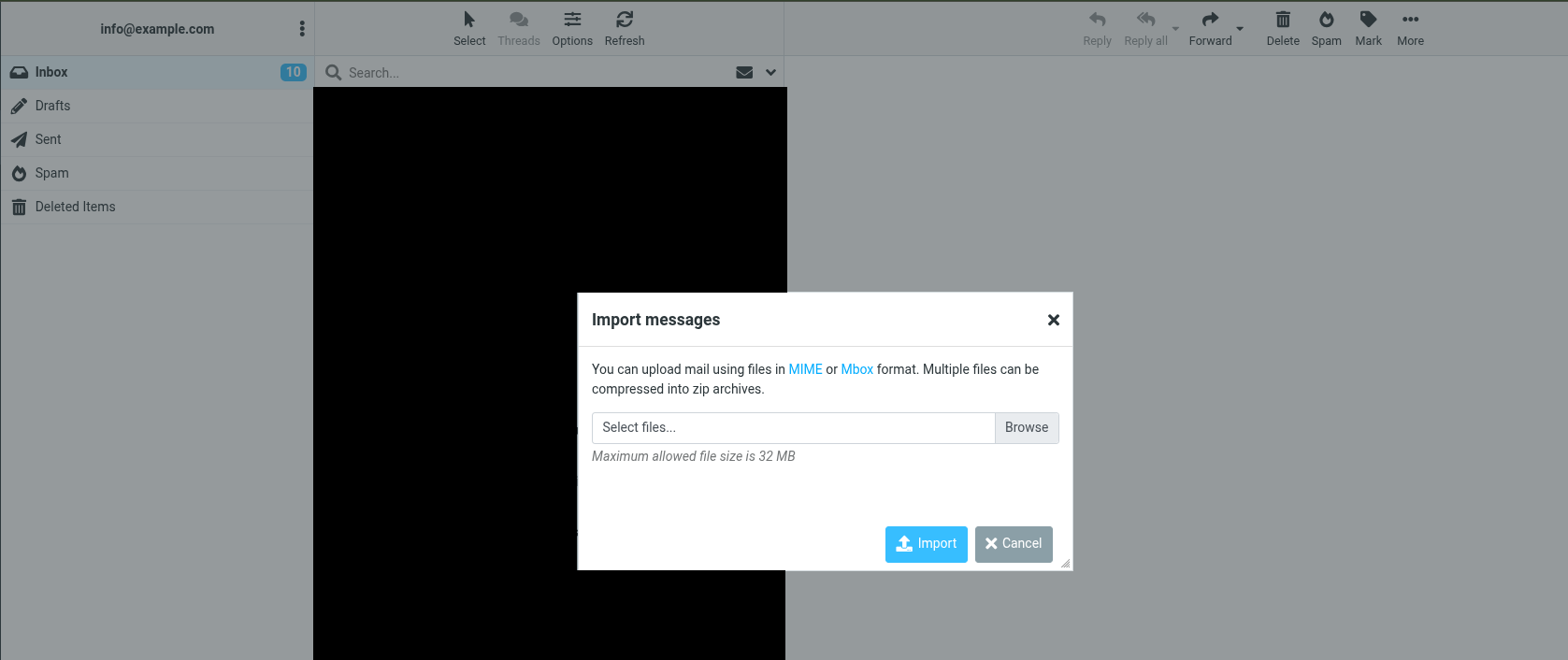
You can also import emails into Stackmail, using the import function. That can be found, using the option More > Import > select files. Simply select the backup zip and press import. Our Stackmail interface only allows either the MIME or Mbox formats.
For full peace of mind, automatic daily backups, we recommend using our Timeline Backups Pro facility.