
How to restore a .wpress WordPress backup

The Backup/Restore tool supports restoring WordPress websites from .wpress backup files. These files are typically generated by the popular All-in-One WP Migration WordPress plugin, which allows you to export and back up your WordPress website.
If you have an existing .wpress backup, you can restore it directly to your 20i hosting package using the Backup/Restore tool.
How to restore a .wpress backup
1. Navigate to Manage Hosting, locate the hosting package you wish to restore the backup to, then select Options > Manage.
2. Under the Web Files section, select Backup/Restore.
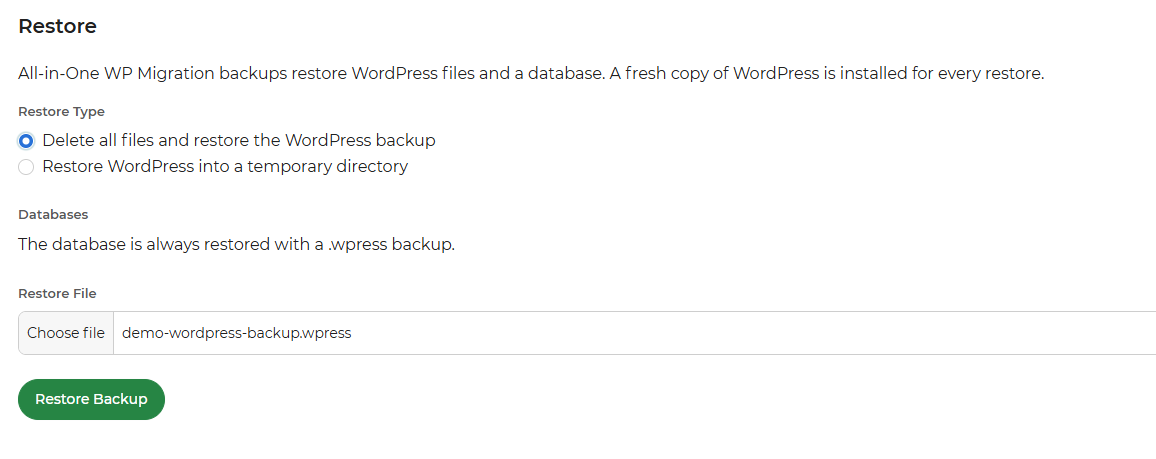
3. Within the restore section, select the .wpress backup file from your device that you wish to restore.
4. Choose how you would like to restore your WordPress backup. There are two available options:
- Delete all files and restore the WordPress backups.
- Restore WordPress into a temporary directory.
5. Once configured, select Restore Backup
Further information
The Backup/Restore tool also supports creating and restoring standard backups generated through My20i. For more information on creating and restoring these backups, please click here.
If you encounter any issues when restoring your backup, please contact our Support Team, who will be happy to assist.