
Selling Shared Hosting Through WHMCS

We've developed a bespoke provisioning and addon module for WHMCS that allows 20i Resellers to sell Shared Hosting packages directly through WHMCS. This includes support for all configuration types of operating systems and hardware configurations.
Pre-Requisites
- You must have a 20i Reseller account
- You need a WHMCS installation (either existing or new)
- If selling in multiple currencies, ensure each currency is enabled in WHMCS.
- You must first create your preset hosting package types.
Hosting Package Types
You must set up your hosting package types before creating a product that will use this hosting package type. When creating your product range within WHMCS, you must assign a package type to this product. This package type assigns the parameters of the hosting package that is provisioned. To learn more about hosting package types, please click here.
Configuring & Selling Shared Hosting via WHMCS
Once you have configured and created your hosting package types within My20i, you will need to create the products within WHMCS. To do this, head to System Settings > Product/Services.
Creating a new Product Group
Before you can create any products, you must first create a product group. This helps better assign products to the relevant category. To do this:
- Select the Create a New Group button.
- Fill in the required fields, such as Product Group Name, as well as any headline and taglines you may decide to add.
- Select Save Changes once you are happy with the configuration.
Creating a new Product
To create a product, both an applicable package type and product group must be created. To create a new product:
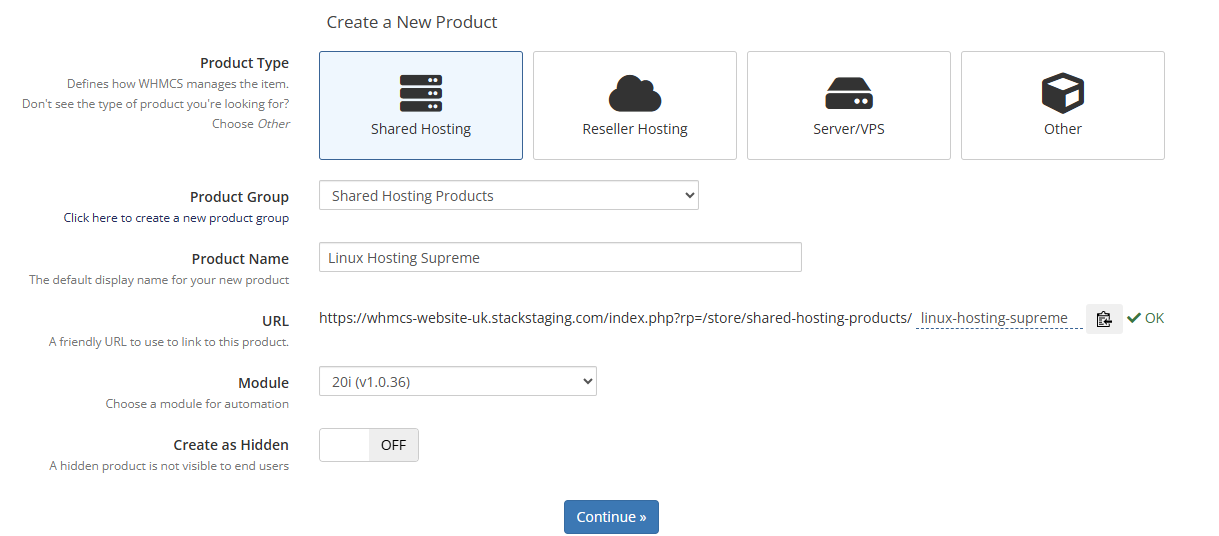
- Select the Create a New Product button.
- Select Shared Hosting as the product type.
- Select the product group you created previously.
- Set a Product Name for your product.
- Select 20i for the module.
- And finally, click Continue.
Once created, select the Module Settings sub-section and select the Type Code dropdown menu. From here, please select the relevant hosting package type you created earlier. The 20i WHMCS module pulls this from your 20i account. Finally, set the StackCP User custom field to the StackCP User option. You can leave the WHMCS Admin User as the Primary User.
Next, go to the Custom Fields section and then create a new custom field. Enter "PackageId" for the field name, and select Admin Only. One done, select Save Changes.
Note: For each product/service you configure, you'll need to add a new custom field.